Introduction
Keeping a WordPress site safe is rarely about a single plugin—it is about running a repeatable WordPress security update and hardening workflow on top of trustworthy hosting. WordPress core releases regular security fixes—such as the WordPress 7.1.5 security release on November 18, 2026—while third-party plugins and themes account for a large share of real-world compromises. Once an update ships, exploit details often circulate publicly within days, leaving unpatched sites exposed to automated bots.
If you have not set up backups yet, start with our dedicated WordPress backup guide, which covers database and file exports, the 3-2-1 rule, and restore testing. This guide focuses on everything around updates, hosting, and hardening as of November 25, 2026: how to configure core and plugin updates safely, what to demand from WordPress security hosting, which wp-config.php and file-permission locks WordPress.org recommends, and how to turn those controls into a weekly, monthly, and quarterly WordPress security plan.
Key Facts: WordPress Security Updates and Hardening
- Current core baseline: WordPress
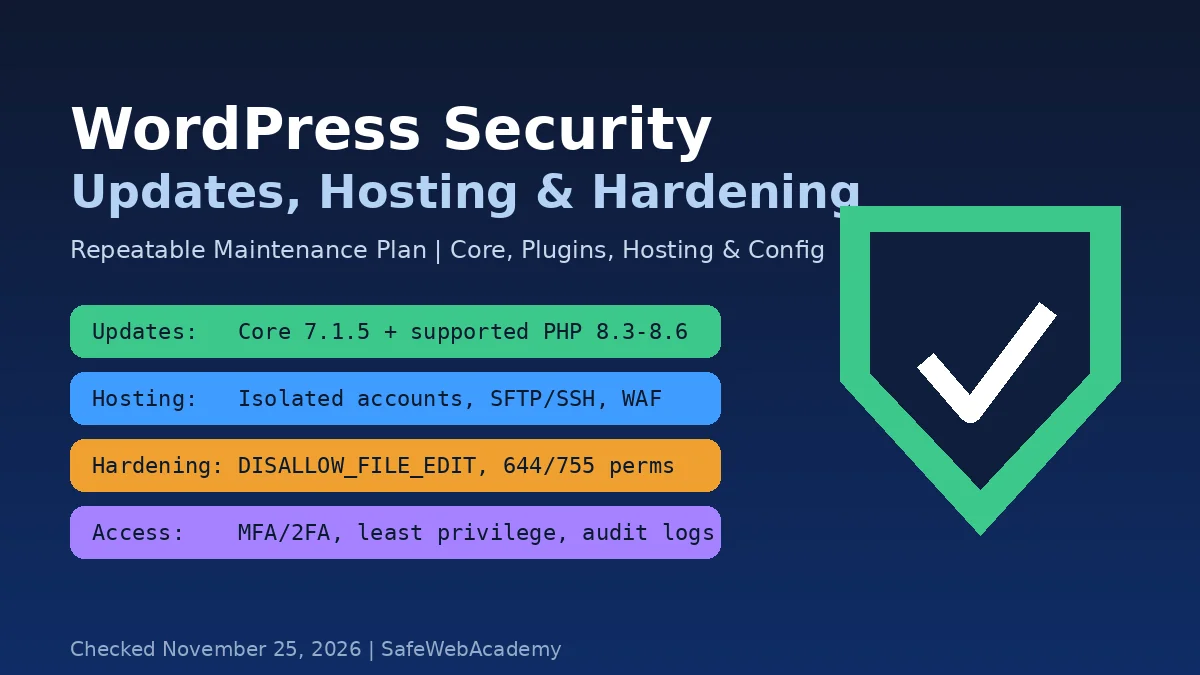
7.1.5is the latest release as of November 25, 2026, with security backports down to older branches; never download core, plugins, or themes outside WordPress.org or verified vendors. - Automatic updates by default: WordPress enables minor core and translation updates automatically, while major core releases and plugin/theme auto-updates can be controlled via the Dashboard or
wp-config.phpfilters. - Hosting matters more than people think: WordPress.org notes that on shared servers without account isolation, a compromise on a neighboring site can spill into yours even if your own install is hardened.
- PHP lifecycle deadline: PHP
8.2reaches end of security support on December 31, 2026, and PHP8.4active support ends the same day; run PHP8.3–8.6and patch promptly. - High-impact hardening locks: Set
define( 'DISALLOW_FILE_EDIT', true );, restrictwp-config.phppermissions (400or440), enforce755directories /644files, delete unused plugins/themes, and require strong passwords plus two-factor authentication (2FA). - Backup before every change: Always take and verify a full backup before major core or plugin upgrades.
Building a Reliable WordPress Security Update Workflow
Every WordPress security update balances speed against site stability. Security patches need to ship quickly, yet blindly auto-updating complex WooCommerce or page-builder stacks without a fallback can break checkout or layouts.
WordPress divides updates into four streams—treat each differently:
| Update Stream | Default Behavior | Recommended Policy | How to Automate Safely |
|---|---|---|---|
Core minor & security (e.g., 7.1.4 -> 7.1.5) | Auto-enabled | Keep automatic updates enabled | Leave default or set WP_AUTO_UPDATE_CORE to 'minor' |
Core major (e.g., 7.1 -> 7.2) | Manual / opt-in | Test on staging first, then apply within days | Backup first; run via Dashboard or wp core update |
| Plugins & themes | Manual unless opted in | Enable auto-updates for simple/trusted plugins; stage complex ones | Enable selectively in Dashboard or via auto_update_plugin filter |
| Translations | Auto-enabled | Keep automatic updates enabled | Default WordPress behavior |
In wp-config.php, WordPress documents three settings for WP_AUTO_UPDATE_CORE:
true: enables both major and minor core updates.'minor'(default): enables minor security/maintenance updates while holding major releases for manual review.false: disables core auto-updates (not recommended unless managed via CI/CD or WP-CLI on a strict patch schedule).
For multi-site admins or agencies, WP-CLI makes patching auditable and scriptable over SSH:
# Check current core and plugin update status
wp core check-update
wp plugin list --update=available

# Apply minor security release and update database schema if needed
wp core update --minor
wp core update-db
Two rules cut plugin risk dramatically: delete inactive plugins and themes completely (do not just deactivate them, because their PHP files remain reachable on disk), and never install “nulled” or pirated themes/plugins from third-party download sites.
Choosing WordPress Security Hosting (What Actually Matters)
WordPress.org draws a clear boundary between host responsibility and site-owner responsibility: your host secures the infrastructure and server software, while you secure WordPress, plugins, and user access. Weak hosting can undo careful application hardening.
When evaluating WordPress security hosting, verify five technical controls before you look at marketing badges:
- Tenant isolation: On cheap shared hosting without per-account containerization (such as CloudLinux/CageFS or isolated VPS/containers), one hacked neighbor can expose neighboring sites on the same server.
- Supported PHP versions: Confirm the host provides actively maintained PHP branches and timely security patches. As of November 25, 2026, PHP
8.2loses security support on December 31, 2026, while PHP8.3(security support through Dec 2027),8.4(through Dec 2028),8.5(through Dec 2029), and newly released8.6remain supported. See our PHP security update guide for why timely PHP patching matters. - Encrypted transport only (TLS, SFTP/SSH): WordPress.org specifically advises using SFTP instead of plaintext FTP so credentials are never sent unencrypted, and enforcing HTTPS across both the public site and
wp-admin. - Upstream WAF and brute-force throttling: A host or edge web application firewall filters common exploit scans and login floods before PHP workers spin up.
- One-click staging and automated off-site backups: Staging lets you verify major core and plugin updates before touching production, while independent backups ensure rapid recovery.
Essential Server and wp-config.php Hardening
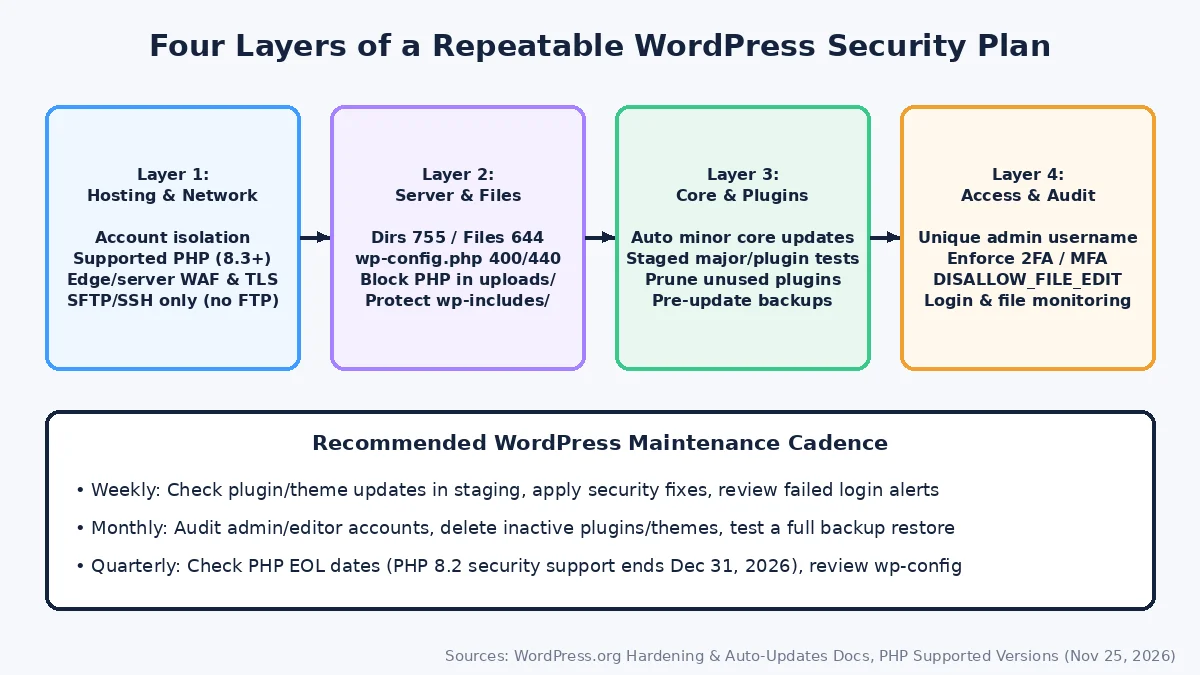
The official WordPress Hardening Guide centers on two themes: limiting access and containment (limiting what an attacker can touch if one component fails). Apply these core controls:
1. Disable the Built-In Theme and Plugin File Editor
By default, any administrator account can edit live PHP files from the WordPress Dashboard (Appearance > Theme File Editor or Plugins > Plugin File Editor). Attackers who steal an admin login use this feature immediately for code execution. Add this line to wp-config.php:
define( 'DISALLOW_FILE_EDIT', true );2. Lock Down File Permissions and wp-config.php
WordPress recommends setting directory permissions to 755 and file permissions to 644, owned by your site account rather than leaving /wp-admin/ or /wp-includes/ world- or web-server-writable everywhere. Tighten wp-config.php to 400 or 440 so only your user (and the web server if required by group) can read database credentials, and block direct HTTP access to it in Apache .htaccess (or equivalent nginx location block):
<Files "wp-config.php">
    Require all denied
</Files>
3. Protect wp-includes/ and Block PHP Execution in Uploads
Uploads directories (wp-content/uploads/) exist for images, PDFs, and media—never PHP scripts. Blocking PHP execution inside wp-content/uploads/ contains web-shell uploads if a plugin bug allows arbitrary file writes. On nginx, add a location rule before your PHP handler:
location ~* /(?:uploads|files)/.*\.php$ {
    deny all;
}
On Apache, WordPress.org also documents placing mod_rewrite rules outside the # BEGIN WordPress / # END WordPress markers to block direct execution of include-only files under wp-admin/includes/ and wp-includes/ (skipping the wp-includes/*.php rule on Multisite setups using ms-files.php).
4. Harden Headers and Database Containment
Serve HTTP security headers—especially HSTS, X-Content-Type-Options: nosniff, Referrer-Policy, and frame-ancestors—at the web server layer, and avoid reusing the default admin username or sharing one database user across multiple unrelated sites. WordPress.org notes that if you revoke schema-altering SQL privileges (DROP, ALTER), major core or plugin updates that modify tables will fail until temporarily restored—so most sites keep standard privileges per isolated database and rely on verified backups.
Authentication, Monitoring, and Access Control
Even a fully patched site falls if an administrator reuses a leaked password. Lock down access with four habits:
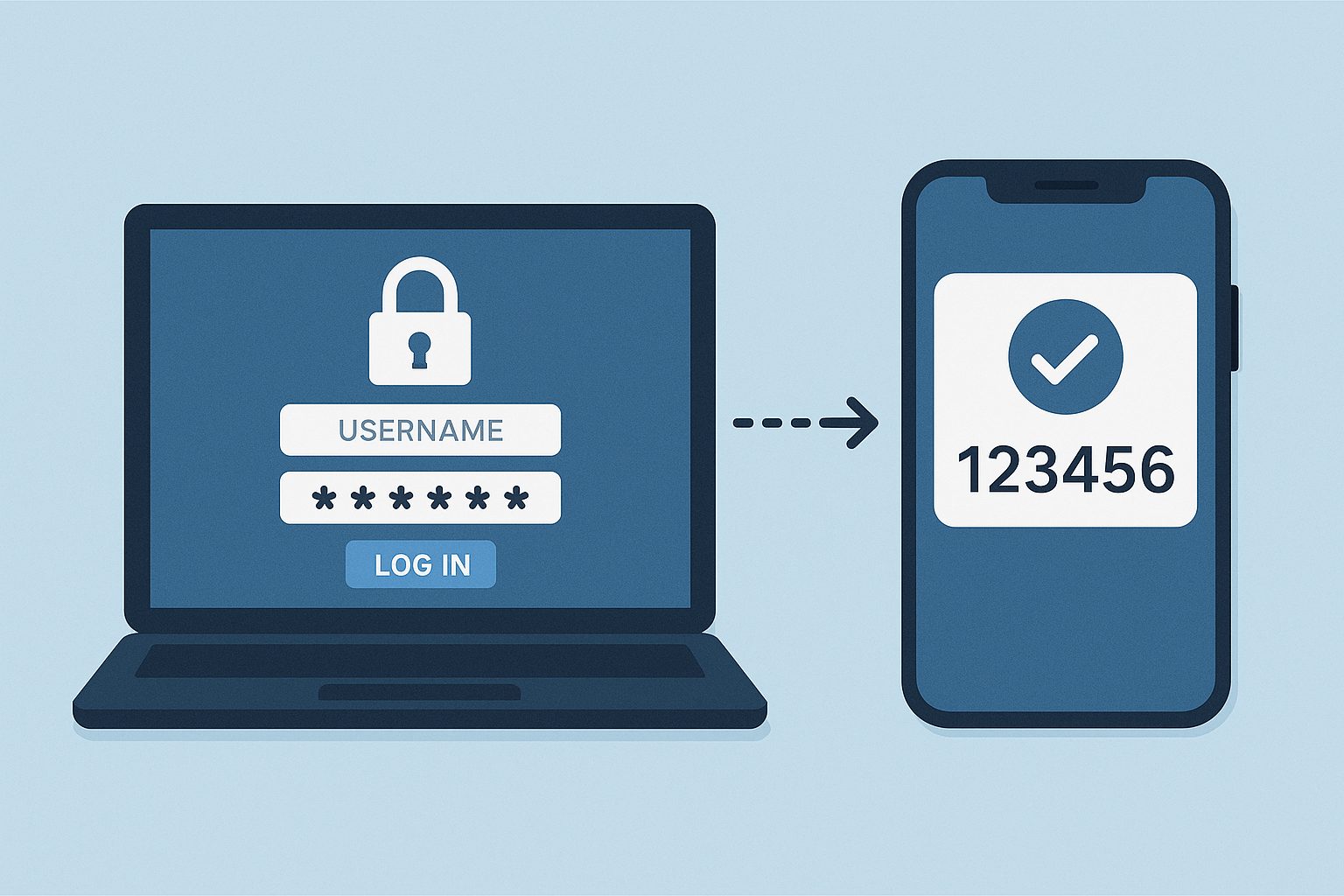
- Require MFA/2FA for every privileged role: Enable two-factor authentication for all administrators, editors, and shop managers, and pair it with unique, password-manager-generated passwords.
- Rename or remove generic
adminaccounts: Create a unique administrator username and demote or remove generic usernames commonly targeted by brute-force bots. - Audit user accounts and XML-RPC exposure: Review who has Administrator or Editor access, remove departed contractors, and disable or restrict
xmlrpc.phpat the server/WAF layer if your site does not use Jetpack or legacy XML-RPC clients. - Enable login and file-integrity monitoring: Track failed login bursts, role changes, plugin installations, and unexpected
.phpfile modifications inwp-content/so compromises are spotted in hours instead of months.
Your Repeatable WordPress Security Plan
Use this schedule to turn one-time hardening into ongoing protection:
| Cadence | Tasks to Run |
|---|---|
| Weekly | Check Dashboard/WP-CLI for core, plugin, and theme updates; test major plugin updates on staging; apply security releases immediately; review failed login and WAF alerts. |
| Monthly | Audit WordPress user roles; delete any deactivated plugins or unused themes; verify off-site backups and test a full restore in staging; scan error logs for PHP warnings or suspicious requests. |
| Quarterly | Check PHP branch EOL dates (upgrade off PHP 8.2 before December 31, 2026); review hosting isolation and SSL/TLS grades; rotate SFTP/SSH keys; audit wp-config.php and server security headers. |
FAQ
Should I enable automatic updates for all WordPress plugins?
Enable automatic updates selectively. Keep automatic minor core security updates turned on, and consider auto-updating simple, well-maintained plugins. For mission-critical plugins (e-commerce, memberships, complex builders), test updates in staging with a fresh backup first—or apply them on a tight weekly schedule and immediately upon security advisories.
Does moving wp-config.php one directory up guarantee security?
WordPress.org notes that moving wp-config.php one level above the web root is supported, though views differ on how much protection it adds alone. Always combine it with strict 400/440 permissions, web-server access rules denying wp-config.php, and DISALLOW_FILE_EDIT.
What PHP version should WordPress sites run in late 2026?
Run PHP 8.3, 8.4, 8.5, or 8.6 (if all plugins/themes are compatible). PHP 8.2 reaches end of security support on December 31, 2026, so plan migrations off 8.2 now.
Are WordPress security plugins enough without server hardening?
No. WordPress.org explains that PHP-level firewall plugins only run after the web server and PHP start processing the request. Combining server-level rules (disabling PHP in uploads/, proper file permissions, edge/server WAF, and supported PHP) with clean update hygiene is far stronger.
What should I do first when a critical WordPress security update comes out?
Verify your current backup is recent and restorable, read the release advisory to confirm affected versions, update core (or the affected plugin) immediately via Dashboard or wp core update, and check your logs if the vulnerability was already under active attack.
Conclusion
A strong WordPress security update routine does not require daily firefighting. Start by confirming isolated, supported-PHP hosting, lock down wp-config.php and upload directories, keep automatic minor core updates active, remove unused plugins, enforce 2FA, and follow a weekly/monthly/quarterly WordPress security plan backed by tested restores.
References
All references below were verified on November 25, 2026.
- WordPress Developer Documentation: Hardening WordPress
- WordPress Documentation: Upgrading WordPress & Automatic Background Updates
- WordPress CLI Handbook: wp core Commands
- PHP Supported Versions Schedule
Related Articles
- How to back up WordPress
- WordPress 7.1.5 Security Release: What It Fixes and How to Update
- PHP 8.5.13, 8.4.28, 8.3.37 and 8.2.36 Security Update: What to Patch Now
- Why two Factor Authentication Is Important
- HTTP Security Headers: What to Set, How to Configure Them and How to Test
- Complete Guide to Web Application Firewall WAF
Last Verified: November 25, 2026. Prepared by SafeWebAcademy from WordPress.org Developer Documentation and PHP.net release schedules linked above. Release branches and PHP end-of-life dates change; recheck supported versions quarterly.