Introduction
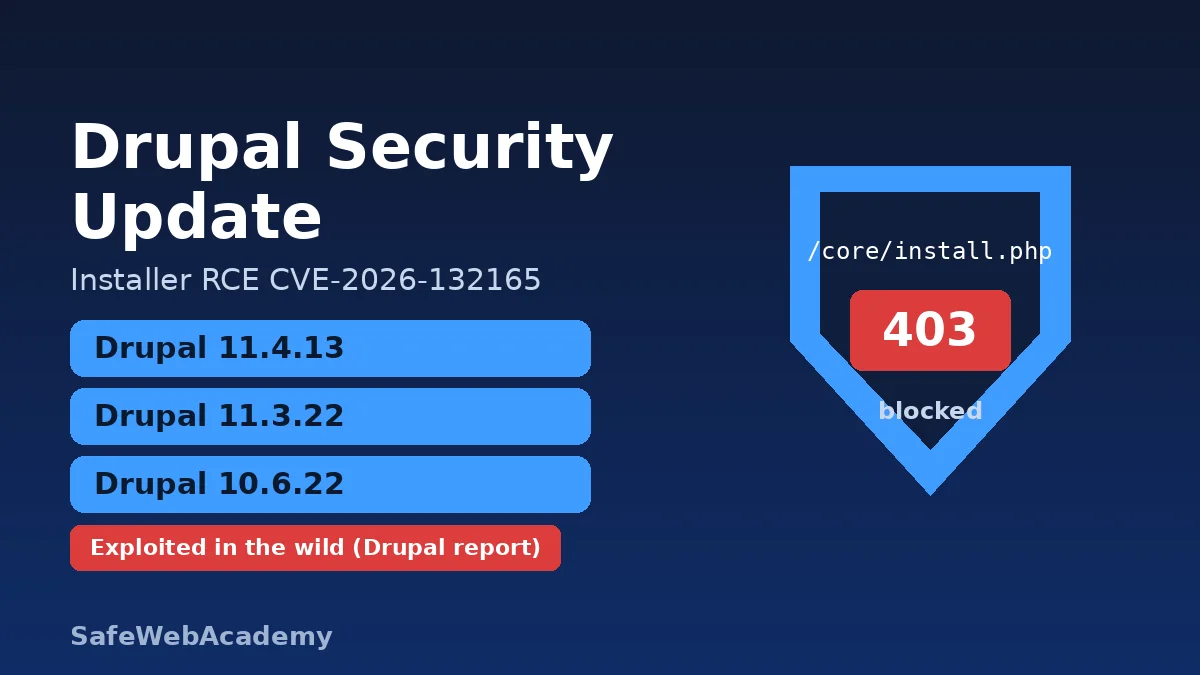
A Drupal security update released on November 18, 2026 fixes CVE-2026-132165, a highly critical remote code execution flaw in Drupal core’s installer (install.php). The Drupal Security Team has since updated its advisory to say it received a report of exploitation on live sites. If you run Drupal 10 or 11, update to 10.6.22, 11.3.22 or 11.4.13 and block the installer today.
This guide summarizes the official advisories SA-CORE-2026-017 and SA-CORE-2026-018. It shows how to check your version, how to patch, and what to do if you cannot patch right away. It contains no exploit details.
Key Facts: Drupal Security Update at a Glance
- What: Drupal core 10.6.22, 11.3.22 and 11.4.13 (November 18, 2026) fix SA-CORE-2026-017 and SA-CORE-2026-018.
- Main flaw: CVE-2026-132165. Under specific conditions, an attacker can use
install.phpto try to reinstall Drupal. This can lead to site takeover or remote code execution. - Second flaw: CVE-2026-132166, a “gadget chain” that is not directly exploitable on its own.
- Affected: Drupal core before 10.6.22, 11.0.0 to before 11.3.22, and 11.4.0 to before 11.4.13. End-of-life branches get no fix.
- Severity: “Highly critical” (20/25) on Drupal’s own risk scale. NVD and CVE.org had not published the CVE records yet when we checked.
- Exploitation: the Drupal Security Team says it received a report of exploitation on live sites as early as November 19, 2026, 19:00 UTC (21:00 Kyiv time). The CVE is not in the CISA KEV catalog (version 2026.11.20).
- Action: update Drupal core, block
/core/install.php, and make sure the web server cannot write tosettings.php.
What Is CVE-2026-132165?
CVE-2026-132165 is a flaw in Drupal’s web installer that can let an attacker reinstall a site and take it over.
Drupal core ships with core/install.php, which you need only once, to set up a site. According to SA-CORE-2026-017, under specific conditions an attacker can use this installer to attempt to reinstall Drupal. The advisory says this can lead to site takeover or remote code execution. It also says some exploit paths are blocked if the web server cannot write to, or change permissions on, settings.php.
Drupal’s advisory credits Anthropic’s OSS Scanner with the discovery. The risk string is AC:Complex/A:None/CI:All/II:All/E:Exploit/TD:Uncommon. In plain terms: no login is needed, the attack is complex, the impact on data is total, an exploit exists, and only an uncommon set of sites is exposed at a given time.
What does SA-CORE-2026-018 fix?
SA-CORE-2026-018 (CVE-2026-132166, “Moderately critical”, 14/25) removes a chain of methods in core that an attacker could abuse only if a separate insecure deserialization bug exists. Drupal says it is not directly exploitable. The same releases fix both issues.
Which Drupal Versions Are Affected?
All supported Drupal 10 and 11 branches before the November 18 releases are affected, and end-of-life branches will not get a patch.
| Drupal branch | Affected | Fixed in | Status |
|---|---|---|---|
| 11.4.x | 11.4.0 to 11.4.12 | 11.4.13 | Supported until April 2027 |
| 11.3.x | 11.3.0 to 11.3.21 | 11.3.22 | Supported until Drupal 11.5.0 (December 2026) |
| 11.0.x to 11.2.x | All | No fix | End-of-life |
| 10.6.x | Before 10.6.22 | 10.6.22 | Supported until Drupal 11.5.0 (December 2026) |
| 10.5.x and older, Drupal 8 and 9 | All | No fix | End-of-life |
Drupal’s release history lists 11.4.13, 10.6.22 and 11.3.22 as published on November 18, 2026, between 16:52 and 17:30 UTC. Drupal 11.5 and 12.0 betas are not covered by security advisories.
What Is the Security Impact?
The worst case is full site takeover, including code execution on the server, without a login.
A successful reinstall gives the attacker control of the site, which the advisory calls a site takeover. With that control, an attacker could run code, steal data, deface pages or host malware. The advisory rates the target distribution as “uncommon,” so not every site is exposed at every moment. Still, the exploitation report makes this Drupal security update a “patch now” task for every public Drupal site.
Drupal Steward customers are already protected from known attack vectors, according to the advisory. Drupal still asks them to upgrade soon, in case new attack vectors appear.
How Do I Check Whether My Drupal Site Is Affected?
Check your exact Drupal core version, then test whether the installer is reachable from the internet.
How do I check my Drupal version?
In the admin UI, open Reports > Status report (/admin/reports/status). From the command line, use Composer or Drush in your project directory:
composer show drupal/core | grep versions
drush status --field=drupal-version
Compare the result with the table above. Anything below 10.6.22, 11.3.22 or 11.4.13 needs the Drupal security update.
How do I check whether install.php is exposed?
Drupal’s documentation on securing the installer gives three test requests. Replace example.com with your domain:
curl -I https://example.com/core/install.php
curl -IL https://example.com/install.php
curl -I https://example.com/core/install.php/foo
All three should end in a 403 or 404 response. A 200 means the installer is reachable.
How Do I Apply the Drupal Security Update?
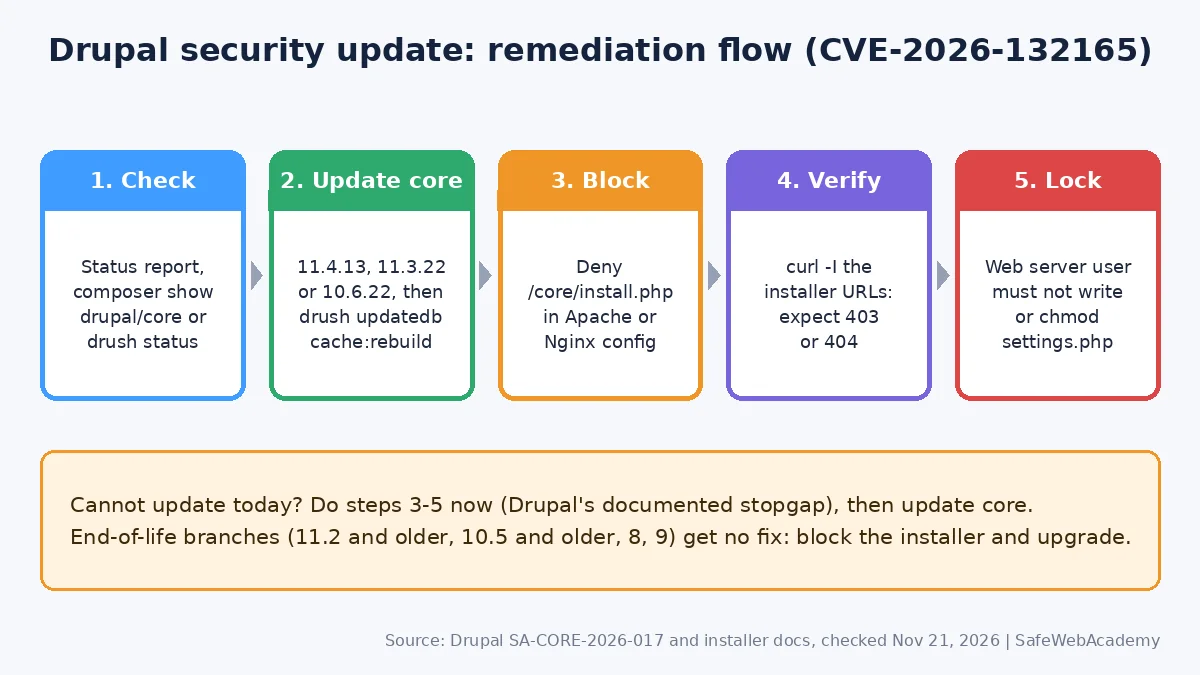
Update Drupal core to the fixed release for your branch, run database updates, then block the installer.
- Back up first. Back up the database and files so you can roll back.
- Update core with Composer. Drupal’s update guide uses
composer update "drupal/core-*" --with-all-dependenciesfor sites based ondrupal/core-recommended. - Run database updates and clear caches:
drush updatedb, thendrush cache:rebuild. - Check the Status report again and confirm the new version.
- Update every copy. Include staging, disaster-recovery copies and container images.
How do I block install.php after installation?
Drupal recommends blocking the installer in the web server configuration. For Apache, add this to the virtual host (not to .htaccess, which causes a 500 error for this block):
<Location "/core/install.php">
  Require all denied
</Location>
For Nginx, add this inside the HTTPS server block, then run nginx -t before reloading:
location ^~ /core/install.php {
  return 404;
}
Drupal warns against an exact match (location = /core/install.php), because some setups would miss /core/install.php/foo. On shared hosting, a <Files "install.php"> rule in .htaccess works, but Composer can overwrite .htaccess. Do not block update.php by mistake.
What if I cannot update right away?
Block the installer now, as SA-CORE-2026-017 advises, and schedule the Drupal security update for the next possible window. Also make sure the web server user cannot write to settings.php or change its permissions. This blocks some exploit paths, but it is not a full fix. Sites on end-of-life branches should block the installer and plan an upgrade to a supported branch.
Are there known issues with the new releases?
Yes. The 10.6.22 release notes list a theme registry regression (“Theme hook field not found”) that affects some contributed and custom code, including Search API. Drupal says the fix will ship in 11.4.14. Do not skip the Drupal security update because of it. Test on staging first.
Additional Security Recommendations
A Drupal security update closes this flaw, but these habits reduce the damage from the next one:
- Keep the installer blocked permanently. An installed site does not need
install.php. - Separate file ownership. Let a deployment account own the code and
settings.php, not the PHP process. - Patch the whole stack. Apply the PHP security update for 8.5.13, 8.4.28, 8.3.37 and 8.2.36, the nginx 1.30.7 and 1.31.9 update or Apache HTTP Server 2.4.71.
- Use a WAF as an extra layer. A web application firewall can filter attacks, but it does not replace patching.
- Have a response plan. If you find unknown admin accounts, follow an incident response process for data breaches.
FAQ
Is CVE-2026-132165 being exploited?
Yes, according to Drupal. The Security Team updated SA-CORE-2026-017 to say it received a report of exploitation on live sites as early as November 19, 2026, 19:00 UTC. As of November 21, 2026, the CVE is not in CISA’s KEV catalog (version 2026.11.20).
Which Drupal security update do I need?
Install 11.4.13 on Drupal 11.4, 11.3.22 on Drupal 11.3, or 10.6.22 on Drupal 10.6. Older branches are end-of-life and need an upgrade to a supported branch.
Does blocking install.php fix the vulnerability?
It removes the entry point that SA-CORE-2026-017 describes, and Drupal recommends it as the stopgap. It is not a replacement for updating core, which also fixes CVE-2026-132166.
Is Drupal 7 affected?
The advisory lists affected versions only for Drupal 10 and 11 and says Drupal 8 and 9 are end-of-life. It does not mention Drupal 7, so check with your Drupal 7 extended support vendor.
Do I need to do anything on managed Drupal hosting?
Confirm with your host that core is at a fixed version and that /core/install.php returns 403 or 404. Some managed platforms already block the installer, but test it yourself with the curl commands above.
Conclusion
This Drupal security update fixes an installer flaw that Drupal says attackers are already using. Update to 10.6.22, 11.3.22 or 11.4.13, block /core/install.php, lock down settings.php, and check every site you manage today.
References
All links below returned HTTP 200 when checked on November 21, 2026.
- Drupal SA-CORE-2026-017: Highly critical remote code execution (CVE-2026-132165)
- Drupal SA-CORE-2026-018: Moderately critical gadget chain (CVE-2026-132166)
- Drupal 10.6.22 release notes, 11.3.22 and 11.4.13
- Drupal docs: Securing the installer (install.php)
- Drupal docs: Updating Drupal core via Composer
- CISA Known Exploited Vulnerabilities catalog
Related Articles
- Nginx Security Update: 1.30.7 and 1.31.9 Fix 10 CVEs
- Apache HTTP Server 2.4.71: Patch mod_http2 CVE-2026-119618
- PHP 8.5.13, 8.4.28, 8.3.37 and 8.2.36 Security Update: What to Patch Now
- OWASP Top 10 Explained: A Practical Guide to Website Security
- How to Secure Your Ubuntu Server: A Beginner-Friendly Guide
Last Verified: November 21, 2026. Prepared by SafeWebAcademy from the official Drupal security advisories, release notes and documentation linked above, and the CISA KEV catalog. This is not an official Drupal Association publication. Security details can change, so check the linked advisories for updates.